
Outreach Lists
How to Export and Organize Local Business Leads
This guide is for outbound agencies and consultants turning research into respectful sales activity who need a practical way to turn how to export and organize local business leads into a reviewed local prospecting workflow. The common pain is simple: even a strong prospect list performs poorly when messages are generic, non-compliant, or disconnected from the observed signal. The goal is a safer outreach plan where each contact attempt is grounded in a verified business reason and clear opt-out expectations.
Direct answer: A good outreach list is not just contact data. It is a reviewed set of businesses where your team has documented a relevant signal, selected the right offer, and prepared a compliant message that explains why the contact is reasonable. Use the process below as decision support, not as a promise of replies, rankings, clients, or revenue.
Executive summary
The short version for how to export and organize local business leads
Quick answer
A good outreach list is not just contact data. It is a reviewed set of businesses where your team has documented a relevant signal, selected the right offer, and prepared a compliant message that explains why the contact is reasonable.
Working definition
In LocaMapHQ, this topic is treated as a reviewed agency workflow: choose a market, identify public business signals, validate the opportunity manually, save useful notes, and export only records with a clear next step.
Decision framework
Use signal, fit, permission/compliance, and follow-up readiness as the four checks before outreach begins.
When not to use this approach
Do not use this workflow for guaranteed outcomes, private data collection, automated outreach decisions, or campaigns where your team cannot verify the reason for contacting a business.
- Key takeaway: start narrow so each prospect can be reviewed with context.
- Quality bar: every exported row should have a visible signal, fit note, and next action.
- Human review: final outreach, compliance, and fit decisions stay with your team.
- Best next step: run one focused city-and-industry test before scaling the workflow.
Why the export step matters
Researching and qualifying local business prospects is only valuable if you can move those prospects into an actionable format for outreach. The export step — getting your qualified prospects out of your research tool and into a spreadsheet, CRM, or outreach platform — is where prospecting becomes operational. Without a clean, well-structured export, your research stays trapped in a tool and never reaches the outreach stage.
This guide covers the complete export workflow — from exporting your qualified prospects as a CSV to organizing them in spreadsheets and CRMs, importing them into outreach tools, tracking your outreach progress, and maintaining the list over time.
Step 1 — exporting from LocaMapHQ
LocaMapHQ exports your saved prospects as a CSV file. The export includes the core data fields for each prospect:
- Business name
- Address
- City and state
- Phone number
- Website URL (if available)
- Industry/category
- Review count
- Average rating
Before exporting, make sure you have applied your qualification filters and saved only the prospects that meet your criteria. The export should contain your qualified list — not every business from the search results.
To export, navigate to your saved list and click the export button. The CSV file will download to your computer, ready for import into your spreadsheet, CRM, or outreach tool. See the features page for detailed export instructions.
Step 2 — understanding the CSV format
The exported CSV file is a standard comma-separated values file that can be opened in any spreadsheet application (Google Sheets, Excel, Numbers) or imported into any CRM or outreach tool that accepts CSV imports. Each row represents one prospect, and each column represents a data field.
The CSV format is universal — it works with virtually every business tool. This means your LocaMapHQ research data can flow seamlessly into whatever workflow you use for outreach and tracking.
Step 3 — organizing in spreadsheets
If you use a spreadsheet for outreach tracking, add the following columns to your imported CSV:
- Opportunity signal: the specific gap you identified (no website, outdated site, low reviews, etc.)
- Priority tier: Tier 1, Tier 2, or Tier 3
- Email address: the best email you found (if available)
- Outreach status: Not Contacted, Contacted, Replied, Meeting Scheduled, Proposal Sent, Closed Won, Closed Lost
- Date first added: when the prospect was added to your list
- Date last contacted: the date of your most recent outreach attempt
- Number of touches: how many times you have contacted this prospect
- Next action: what is the next step for this prospect
- Notes: any relevant details from research or conversations
These additional columns transform your export from a static data file into a living outreach tracker. Update the status columns as you work through your outreach sequence.
Step 4 — organizing in CRMs
If you use a CRM platform like HubSpot, Pipedrive, or similar, import your CSV as contacts or deals. Map the LocaMapHQ data fields to the corresponding CRM fields:
- Business name maps to Company Name or Contact Name
- Phone number maps to Phone
- Email address maps to Email (if you enriched the list with emails)
- City and state maps to City and State fields
- Website URL maps to Website
- Review count and rating can be stored in custom fields
Most CRMs handle CSV imports smoothly. Check your CRM's import documentation for specific field mapping instructions. Once imported, use the CRM's pipeline features to track outreach status and manage follow-ups.
Step 5 — importing into outreach tools
If you use a dedicated email outreach tool like Instantly, Smartlead, or Lemlist, import your CSV as a recipient list. These tools handle email sequencing, follow-up automation, and response tracking. Configure your outreach sequences:
- Initial email: the first personalized message referencing the prospect's specific signal
- Follow-up 1 (Day 3): a brief follow-up referencing the first email
- Follow-up 2 (Day 7): a second follow-up with additional value or a different angle
- Follow-up 3 (Day 14): a final message — "I do not want to be a nuisance, so this will be my last message for now."
Personalize each email in the sequence using merge fields from your CSV (business name, city, review count, etc.). The more specific your outreach, the higher your response rates.
Step 6 — tracking outreach progress
Whether you use a spreadsheet, CRM, or outreach tool, track these metrics for each prospect:
- Outreach status: where is this prospect in your pipeline?
- Date last contacted: when did you last reach out?
- Number of touches: how many times have you contacted this prospect?
- Response received: did the prospect reply? If so, what was the nature of the response?
- Next action: what is the next step — follow-up, meeting, proposal, archive?
Review your outreach list weekly. Identify prospects that need follow-up, prospects that have gone cold and should be archived, and prospects that have moved forward in the pipeline.
Step 7 — maintaining the list over time
Your exported list requires ongoing maintenance:
- Add new prospects regularly: run new searches in LocaMapHQ weekly or bi-weekly and export fresh batches to replace the prospects you remove.
- Archive non-responders: after 4 to 5 outreach attempts without response, move the prospect to an archive list. Revisit in 3 to 6 months.
- Remove closed businesses: check for "Permanently Closed" labels and remove these immediately.
- Update opportunity signals: re-check whether the gap you identified still exists before continuing outreach.
- Promote converted prospects: when a prospect becomes a client, move them from the outreach list to your client list.
Mistakes to avoid when exporting and organizing local business leads
- Exporting unqualified prospects: your export should contain only businesses that meet your qualification criteria. Exporting raw search results creates a bloated, low-quality list.
- Not adding tracking columns: an export without status tracking columns is a static file, not an outreach tool. Add the columns you need to track progress.
- Importing without field mapping: when importing into a CRM or outreach tool, make sure your data fields are mapped correctly. Mis-mapped fields create confusion and wasted effort.
- Not personalizing outreach after import: an imported list is only as good as the outreach it enables. Use the data fields to personalize each message.
- Exporting once and never re-exporting: markets change. Run new searches and export fresh lists regularly to catch new opportunities.
- Not backing up your data: keep a copy of your exported CSV files. If your spreadsheet or CRM has issues, you do not want to lose your prospect data.
- Ignoring list hygiene: an exported list that is never cleaned accumulates stale entries. Archive non-responders and remove closed businesses regularly.
How LocaMapHQ helps you export and organize local business leads
LocaMapHQ helps you find and qualify local businesses by city and industry, then export your qualified prospects as a clean CSV file. The export includes all the core data fields you need — business name, address, phone number, website, review count, rating — in a format that is compatible with spreadsheets, CRMs, and outreach tools.
By streamlining the research-to-export workflow, LocaMapHQ helps you move from prospecting to outreach faster. Visit the features page for the full overview, or create a free account to export your first batch of qualified local business leads.
FAQ: Exporting and organizing local business leads
What format works best for importing leads into email outreach tools?
CSV is the universally compatible format for importing into Instantly, Lemlist, Apollo outreach campaigns, HubSpot, and most other tools. Ensure column headers use clean names without spaces or special characters — "business_name" rather than "Business Name" — to reduce mapping friction during import. Most tools allow custom field mapping on import, so the exact header names matter less than whether all required fields are present and populated.
How should I structure the CSV for a personalized outreach campaign?
Include one column per personalization variable you plan to use in your outreach copy. At minimum: business name, city, industry/category, and the specific opportunity signal (no website, bad website, low reviews). Add a "custom_opening" column if you are writing specific openers for priority prospects. Your outreach tool can then merge these variables into each message automatically, making personalized campaigns manageable at scale.
Can I use the exported list for more than one outreach campaign?
Yes, but track which prospects were included in which campaign. Sending the same business two different campaigns simultaneously creates confusing conversations and makes it impossible to attribute responses to a specific offer. If you plan to run multiple campaigns from the same base list, either exclude current campaign recipients from new campaigns, or wait until a prospect has completed the full follow-up sequence before including them in a new one.
Export qualified local business leads from LocaMapHQ
Search, filter, save, and export — your qualified prospects in a CSV file ready for outreach.
Related reading
Practical block
Export quality block
| Field | Why it matters | Before export | After export |
|---|---|---|---|
| Business name | Identifies record | Remove duplicates | CRM/company field |
| Signal | Explains fit | Add short note | Outreach angle |
| Category | Segments list | Confirm niche | Campaign grouping |
| Contact path | Supports action | Check availability | Next step |
Decision framework for this topic
Use signal, fit, permission/compliance, and follow-up readiness as the four checks before outreach begins.
A practical prospecting workflow should answer five questions before anything is exported: which market are we researching, which visible signal matters, how will we verify it, what segment will the business enter, and what next action is appropriate? This keeps the article useful for real agency operations rather than turning it into a keyword page.
If you are still shaping the workflow, start with the LocaMapHQ feature overview, then compare the process with the prospecting checklist and the lead qualification worksheet. Teams that need a product step can move from research into dashboard search, while technical teams can review the API documentation before building a custom workflow.
| Gate | Question | Action |
|---|---|---|
| Market | Does this city, niche, or category match the service you sell? | Keep only focused markets. |
| Signal | Is there a visible reason to review the business? | Document the signal in plain language. |
| Fit | Can your offer plausibly help without exaggerating outcomes? | Segment by offer fit. |
| Action | Can your team take a respectful next step this week? | Export only actionable records. |
Workflow to apply
- Segment prospects by reason for outreach.
- Write one message per segment.
- Include a clear identity and opt-out path where required.
- Track responses and remove poor-fit segments.
- Feed learnings back into future searches.
Original LocaMapHQ methodology
Information gain framework for How to Export and Organize Local Business Leads
Short definition: The Agency Outreach Readiness Score is LocaMapHQ’s editorial method for deciding whether a prospect segment is ready for respectful outreach planning.
Executive summary: For outbound agencies and consultants turning research into respectful sales activity, the useful question is not “can we export more businesses?” It is “which businesses have enough visible evidence, offer fit, and actionability to deserve the next review step?” Use this framework to make how to export and organize local business leads decisions more consistent across reviewers.
Prospect Priority Matrix
Score each prospect from 1–5 in four categories. Prioritize records where at least three categories score 4 or higher.
| Score area | What to check | High score means |
|---|---|---|
| Visible need | Website, profile, review, CTA, or local presence gap | The gap can be explained clearly |
| Business value | Niche economics, service value, competitive market | The business can plausibly benefit |
| Offer fit | Match between your service and observed signal | Your offer is relevant without exaggeration |
| Actionability | Contact path, notes, compliance, next step | The team can act this week |
Decision tree
- 1. Market fit: Does the city and niche match your offer? If no, do not export.
- 2. Signal fit: Is there a visible website, local SEO, listing, or trust gap? If no, keep researching.
- 3. Business fit: Does the business appear active and commercially relevant? If no, remove it.
- 4. Outreach fit: Can your team explain the observation respectfully? If no, save for research only.
- 5. Export decision: Export only records with a clear note, segment, and next action.
LocaMapHQ proprietary scoring library
These scores are LocaMapHQ editorial methodologies for reviewing local business opportunities. They are designed to make agency research more consistent, not to predict purchase intent or campaign outcomes.
| Framework | Scoring criteria | Interpretation | Limitations | Best use cases |
|---|---|---|---|---|
| LocaMapHQ Opportunity Score | Visible need, business value, offer fit, actionability, and reviewer confidence. | 80–100 means prioritize for manual review; 60–79 means keep in research; below 60 means do not export yet. | It is an editorial prioritization score, not a prediction of buying intent, replies, revenue, rankings, or campaign performance. | Comparing businesses inside the same city and niche after a reviewer has documented the visible signal. |
| Website Opportunity Score | Website presence, mobile experience, CTA clarity, service depth, trust signals, and speed/performance review. | High scores suggest a clearer website audit or redesign conversation; low scores may mean the website is adequate or the business context is unclear. | A website gap does not prove budget, urgency, or willingness to buy. Agencies should still verify fit and timing. | Web design, redesign, conversion, mobile, and trust-signal prospecting workflows. |
| Digital Visibility Score | Google Business Profile completeness, review depth, review recency, local page relevance, website consistency, and category fit. | High scores indicate a business may deserve a local visibility diagnostic; mixed scores should stay in research. | Public visibility signals do not prove rankings or search demand and should not be used to promise outcomes. | Local SEO, GBP optimization, local content, and reputation-process research. |
| Prospect Readiness Score | Segment clarity, contact path, specific note, compliance review, owner assigned, and next action. | A prospect is ready only when the team can explain why it is on the list and what respectful next step follows. | Readiness is operational. It does not mean the prospect is ready to buy. | Deciding whether a saved record should move from research to outreach planning. |
| Outreach Difficulty Score | Message specificity, proof needed, compliance sensitivity, competition level, category complexity, and personalization effort. | Higher difficulty means the segment needs more research, a softer offer, or a diagnostic-first message. | Difficulty can change by market, offer, and sender reputation; it should be reviewed after every campaign. | Choosing between outreach segments when the team has limited weekly capacity. |
| Business Modernization Score | Website currency, booking/contact flow, local profile quality, content freshness, trust proof, and operational fit. | High scores suggest the business may benefit from modernization planning; low scores may already have adequate digital basics. | Modernization should be framed as an audit opportunity, not a claim that the business is behind or failing. | Consultants and agencies packaging website, local SEO, and conversion improvements into a practical diagnostic. |
Qualification flowchart
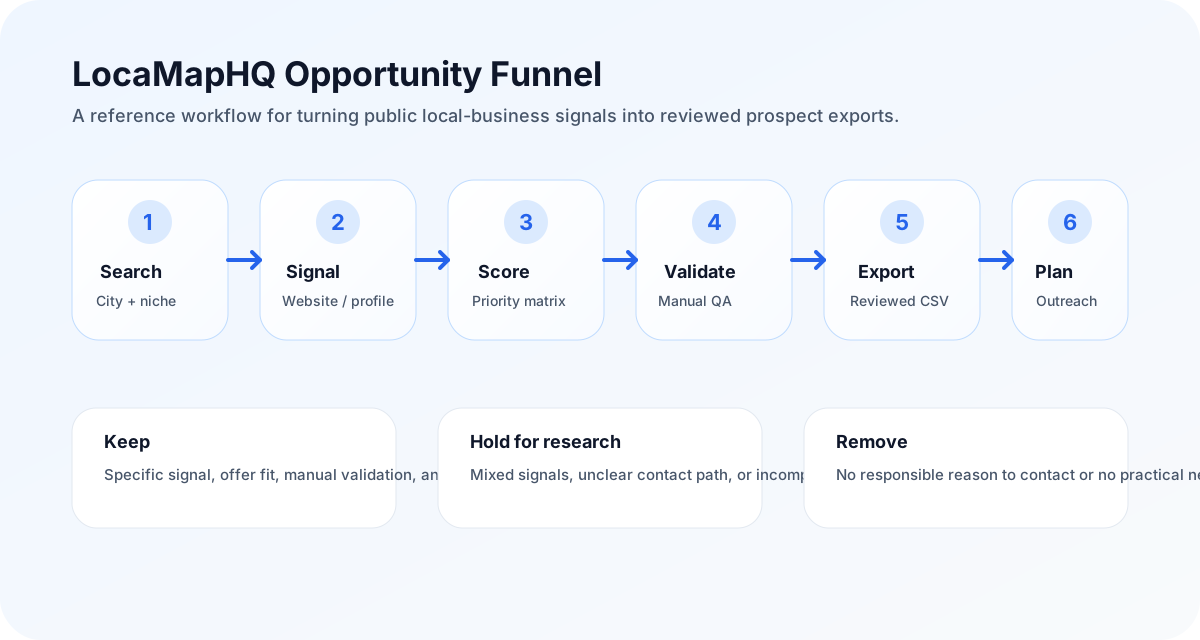
Use this as the review path before a prospect moves from discovery into an outreach-ready export.
Search city + niche
Identify visible signal
Score opportunity
Validate manually
Export reviewed segment
If a business fails any step, keep it in research or remove it. The goal is not maximum export volume; the goal is a list your team can explain and use responsibly.
| Workflow option | Pros | Cons | Best for | Time required | Manual alternative | Automation level | Skill required | Expected outcome |
|---|---|---|---|---|---|---|---|---|
| Manual research | Flexible and easy to start | Slow, inconsistent, and easy to over-export | One small market or a one-off validation pass | Hours per city/niche batch | Maps tabs, website checks, and a spreadsheet | Low | Research discipline and spreadsheet hygiene | A manually reviewed sample list |
| LocaMapHQ workflow | Structured search, saving, notes, scoring, and export | Still needs human qualification and compliance review | Repeatable city, industry, save, review, and export workflows | Minutes to build a candidate batch, plus review time | Recreate the same workflow in Sheets | Medium | Agency targeting and offer-fit judgment | A cleaner qualified prospect segment |
| Custom API workflow | Fits internal systems and custom reporting | Requires technical setup and internal QA | Teams that need prospecting data inside an existing system | Implementation project plus recurring QA | Manual import/export process | Higher, depending on integration | Developer resources and data QA process | A controlled internal prospecting workflow |
When to use LocaMapHQ
Use LocaMapHQ when you need a reviewed list with clear signals, segments, and notes before writing outreach.
When not to use it
Do not use it to automate contact decisions, ignore compliance, or send generic messages to every exported row.
Manual alternative
The manual alternative is building a spreadsheet, writing notes in separate docs, and manually deciding which segment is actually ready.
Educational case studies, not customer claims
These examples are realistic training scenarios for agency teams. They are not real customers, results, or performance claims. Use them to teach reviewers how to connect visible signals to a safer next workflow.
Example Plumbing Company
- Initial state
- Active local service company with emergency jobs, several recent reviews, and a thin website with no clear estimate path.
- Website issues
- Mobile page loads slowly, services are grouped onto one generic page, and the quote CTA is buried below the fold.
- Google Business Profile observations
- Public profile appears active, but review recency and service coverage should be checked manually before outreach.
- Why it scores well or poorly
- Scores well on business value and visible website need, but outreach difficulty is medium because emergency-service messaging must be specific and respectful.
- Recommended outreach
- Offer a short website and quote-flow review focused on helping visitors find the right service page and contact path.
- Expected workflow
- Save as web design + conversion review, add a note about mobile CTA clarity, export only after checking the website and contact route.
Example Dental Clinic
- Initial state
- Established clinic with strong reputation signals but thin treatment pages and inconsistent appointment messaging.
- Website issues
- Service pages lack patient-focused explanations, trust proof is scattered, and booking options are not consistently visible.
- Google Business Profile observations
- Review depth may be strong, but category fit, location relevance, and appointment information should be verified.
- Why it scores well or poorly
- Scores well on business value and modernization potential; outreach difficulty is higher because healthcare messaging requires extra care.
- Recommended outreach
- Offer a patient journey and local visibility review rather than promising new patients or rankings.
- Expected workflow
- Save as local SEO + website trust review, verify service pages, and prepare a diagnostic-first message.
Example Roofer
- Initial state
- Seasonal high-value contractor with visible local competition and mixed website quality.
- Website issues
- Project proof is limited, service-area pages are thin, and the request-estimate path is unclear on mobile.
- Google Business Profile observations
- Review count and recency should be compared against nearby competitors before assigning priority.
- Why it scores well or poorly
- Scores high when reviews, service value, and website gaps align; scores lower if contactability or business activity is unclear.
- Recommended outreach
- Offer a service-area and estimate-flow audit with examples from public pages, not a guarantee of leads.
- Expected workflow
- Save as high-value home service segment, compare local competitors manually, then export a small reviewed batch.
Example Restaurant
- Initial state
- Local restaurant with active reviews but an outdated menu experience and inconsistent hours across public references.
- Website issues
- Menu is hard to read on mobile, ordering/reservation paths are unclear, and event or catering pages are missing.
- Google Business Profile observations
- Hours, location, menu links, and review recency need validation because restaurant data changes quickly.
- Why it scores well or poorly
- Scores well for practical modernization if the restaurant is active; outreach difficulty rises if margins or seasonality are uncertain.
- Recommended outreach
- Offer a menu, hours, and mobile conversion cleanup review rather than a broad marketing pitch.
- Expected workflow
- Save as website update segment, verify menu/hours, and use a narrow operational improvement angle.
Example Law Firm
- Initial state
- Professional service firm in a competitive market with unclear intake flow and thin practice-area content.
- Website issues
- Practice pages are generic, attorney trust proof is limited, and consultation CTAs are inconsistent.
- Google Business Profile observations
- Practice area, location, review context, and advertising sensitivity should be manually reviewed.
- Why it scores well or poorly
- Scores high on business value but outreach difficulty is high because legal services require precise, conservative language.
- Recommended outreach
- Offer a trust, intake, and practice-page diagnostic without implying legal marketing guarantees.
- Expected workflow
- Save as professional-services diagnostic, verify practice fit, and keep outreach educational and compliance-aware.
Agency priority playbook
Prioritize first
High-value service categories where the visible problem maps directly to your offer and can be verified quickly.
Keep in research
Businesses with mixed signals, unclear contact paths, stale profile details, or a weak connection between the signal and your offer.
Do not export yet
Records with no specific reason for outreach, uncertain business activity, sensitive claims your team cannot support, or no responsible next action.
Editorial opinion: agencies usually get more reference value from a smaller list with strong notes than a large export that forces generic outreach. The operational advantage is not just speed; it is clearer judgment.
Interactive review checklist
Expand each checkpoint before exporting a segment. This uses native HTML so it works without extra JavaScript.
Daily workflow
Pick one city and one niche, review visible signals, save only records with a specific note, and remove rows that cannot be explained.
Weekly workflow
Compare segments, export only the batch your team can review, prepare compliant messaging, and document what the first outreach pass teaches.
Monthly workflow
Review which niches produced useful conversations, which signals were noisy, and whether scoring rules need to change.
Team handoff
Give the next owner the segment, score, proof point to verify, recommended angle, compliance status, and next action.
Recovery process
If a campaign underperforms, inspect the search criteria, segment quality, message specificity, proof point, and follow-up process before increasing volume.
Downloadable worksheets
These templates are simple CSVs so an agency can use them in Sheets, Excel, Airtable, or a CRM import workflow.
Authority sources to validate with
Use official sources when a page makes claims about search quality, business profiles, speed testing, compliance, or market context. These sources do not replace your own review, but they keep the workflow grounded in reliable references.
Validation checklist before outreach
- The business appears active and relevant to the city/niche being researched.
- The visible signal is specific enough to explain without exaggeration.
- The website, profile, or listing information has been manually spot-checked.
- The offer matches the observed issue and the likely business context.
- The record has a practical next action and a segment label.
- The outreach plan accounts for applicable law, consent, and opt-out expectations.
Assumptions and limitations
- Scores are editorial decision aids, not objective predictions.
- Public business signals can be stale, incomplete, or misinterpreted without manual review.
- Outreach decisions should account for applicable laws, platform rules, consent, and opt-out expectations.
- LocaMapHQ helps organize research; it does not guarantee leads, clients, revenue, rankings, or response rates.
Signals and tradeoffs to review
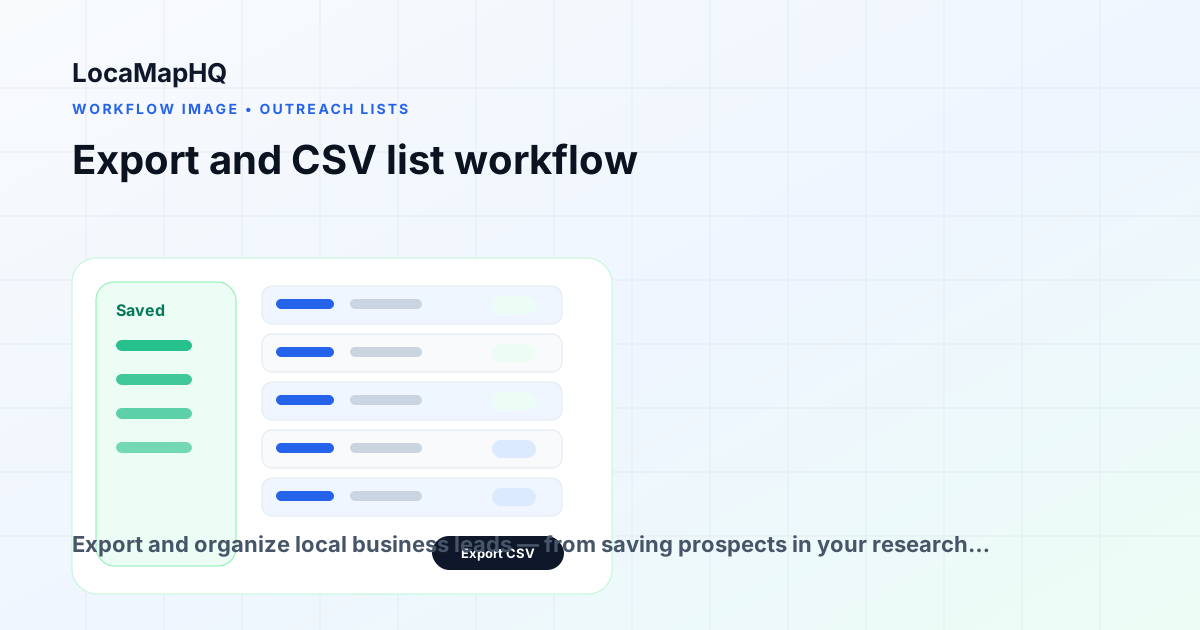
Information gain comes from the review step. Instead of relying on a single datapoint, compare several signals and decide whether they point to the same opportunity. If they conflict, slow down and keep the record in research instead of moving it directly into outreach.
- Specific research note
- Relevant offer fit
- Valid contact path
- Market/niche priority
- Outreach capacity
- Compliance review complete
Limitation: LocaMapHQ supports research and export planning; it does not guarantee replies, appointments, revenue, or compliance for your campaigns. That is why the final decision should stay with a human reviewer who understands the client offer, the market, and the outreach rules.
Mistakes to avoid
- Sending generic mass messages
- Skipping opt-out requirements
- Using stale exports
- Contacting businesses with no relevant reason
Field notes for agency teams
The most useful lists tend to include fewer rows and better notes. A note like “no website listed, 46 recent reviews, high-value emergency service, verify contact page before outreach” is more useful than a spreadsheet with hundreds of businesses and no reason for inclusion. Notes also protect the team from repetitive messaging because each segment has a clear angle.
Review the first exported batch manually before scaling. If more than a third of the records require heavy cleanup, the search was too broad. If every record uses the same reason for outreach, the segment may be strong. If no record has a specific reason, the list should not move into outreach yet.
For deeper context, pair this guide with the complete website audit checklist, the local SEO audit checklist, and the prospecting tracker template. If the workflow fits your team, review pricing and credits or create an account to try the local prospecting workflow.
Sources and editorial notes
These references support the article’s approach to people-first content, public business research, platform policy awareness, and safer agency workflows.
- Google Search Central: creating helpful, reliable, people-first content — Used as the editorial standard for usefulness, originality, and reader-first structure.
- Google SEO Starter Guide — Supports clear titles, descriptions, crawlable links, and helpful page organization.
- U.S. Census Business Dynamics Statistics — Useful context for small-business market research and business formation trends.
- FTC CAN-SPAM Act compliance guide — Reference for commercial email requirements in the United States.
Related guides, templates, and next steps
Checklists and templates
Money pages
Learn pages and resources
When the research direction is clear, move naturally from education to action: run a focused search, qualify the saved businesses, export the reviewed segment, and compare the workflow against your current spreadsheet or manual research process.
Key takeaways
- Start with a focused market, offer, and visible signal instead of a broad export.
- Use the decision frame: Use signal, fit, permission/compliance, and follow-up readiness as the four checks before outreach begins.
- Document why each business stayed on the list so outreach can stay specific and respectful.
- Keep human review in the workflow; prospecting signals do not guarantee replies, revenue, rankings, or clients.
Recommended next workflow
Use this article to build one reviewed prospecting batch: choose a market, identify the visible signal, save only relevant businesses, add notes, and export the segment your team can act on this week. For this topic, the recommended decision frame is: Use signal, fit, permission/compliance, and follow-up readiness as the four checks before outreach begins. The common mistake is exporting too early and forcing outreach to fix weak qualification.
LocaMapHQ helps organize local business research and exports. It does not guarantee performance outcomes, and your team should still review fit, compliance, offer, and messaging before outreach.
Why use LocaMapHQ here?
It keeps the search, save, qualification notes, and CSV export workflow in one place so the team is not rebuilding the same spreadsheet process every week.
Who benefits most?
outbound agencies and consultants turning research into respectful sales activity who already know their offer and need a cleaner way to research local markets.
When should you stay manual?
Use a manual spreadsheet first if you are still defining your ICP, testing one tiny market, or need a one-off research pass.
What happens after export?
Review the CSV, remove weak-fit records, segment the list, prepare compliant messaging, and track what your team learns from the campaign.
Related local lead guides
Frequently asked questions
These FAQs focus on agency workflow, local prospecting decisions, Google Maps research considerations, CSV export planning, and the limits of public business signals.
How do I export local business leads?
Save qualifying prospects in LocaMapHQ during your research session, then export as CSV. The export includes business name, location, website status, review data, and other available fields.
What format should I export in?
CSV is the most universal format — compatible with CRM tools, outreach platforms, and spreadsheets. LocaMapHQ exports as CSV by default.
How do I organize exported leads?
Import into your CRM or spreadsheet. Add columns for outreach status, contact information, and notes. Structure by priority (highest-quality prospects first) and by outreach batch (weekly groups for systematic contact).
Can I import exports into outreach tools?
Yes. CSV exports from LocaMapHQ can be imported into Instantly, Lemlist, Apollo, or any outreach platform that accepts CSV contact lists. Map the columns to your outreach tool's contact fields.
How do I track outreach progress?
Add a status column to your spreadsheet or use CRM deal stages: Not Contacted, Contacted, Replied, Meeting Scheduled, Proposal Sent, Closed Won, Closed Lost. Update after each interaction for clear pipeline visibility.